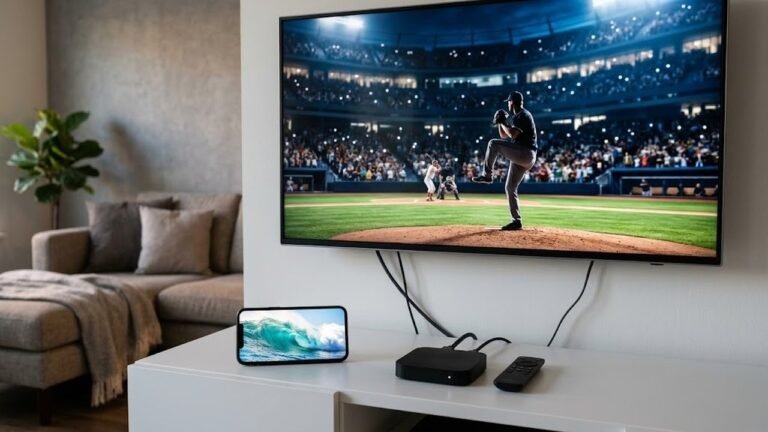
IPTV on Apple TV: Player, EPG and Picture Setup
Watching IPTV on Apple TV is simple once you know how the pieces fit together. Your SetIPTV subscription supplies the channels. Meanwhile, a player app from the App Store turns that login into menus, a program guide and video. This guide covers Apple TV 4K and HD, then shows the same login on iPhone and iPad.
Before you start, keep your welcome message open. It contains an M3U link and Xtream codes, and you will paste one of them into the player. Activation usually takes only a few minutes after payment, so you can often finish the whole setup in one evening.
What you need for IPTV on Apple TV
First, check your hardware. Any Apple TV 4K model handles live streams and 4K video comfortably. The older Apple TV HD also works, although it tops out at 1080p and feels slower in very large channel lists.
- An Apple TV 4K or Apple TV HD on the latest tvOS version.
- A steady home connection that already handles HD video without stalling.
- An active SetIPTV plan with your M3U link or Xtream codes.
- An IPTV player app from the App Store that accepts those login types.
Also, keep the Siri Remote charged. Long channel lists involve a lot of scrolling, and a weak battery makes the first setup feel slow.
Choosing an Apple TV 4K IPTV player from the App Store
Apple does not include an IPTV player in tvOS, so you add one yourself. Open the App Store on the Apple TV and search for terms such as “IPTV player”, “M3U player” or “Xtream player”. Several apps appear, and most offer a free version with optional upgrades.
However, not every app suits a large subscription. Before you install one, read the description and look for these features:
- Xtream codes login, because it loads live TV, movies and series in separate sections.
- M3U playlist support as a backup option.
- EPG (XMLTV) support, so the program guide fills in by itself.
- Favorites and group hiding, which keep thousands of channels manageable.
- Frame-rate and range matching, or at least respect for the tvOS settings.
SetIPTV does not make or sell these apps, and none of them are tied to your plan. Therefore, if one player feels clumsy, you can delete it and try another without losing anything. Your login stays exactly the same.
Apple TV IPTV setup: adding your login
Once the app is installed, open it and look for an option such as “Add playlist”, “Add user” or “Xtream codes login”. The wording differs from app to app, but the fields are nearly identical.
Xtream codes (recommended)
Enter the server URL, your username and your password exactly as they appear in the welcome message. Next, give the playlist a short name, such as “SetIPTV”. The app then downloads the categories, which can take a minute on the first run.
M3U link
Alternatively, paste the full M3U link into the playlist URL field. Typing a long link with the remote is tedious. Instead, many apps let you send it from an iPhone on the same Wi-Fi. For more detail on the format, read our USA IPTV M3U playlist guide.
If the app shows an error, check for an extra space at the end of the password. That single character causes most failed logins.
Loading the EPG program guide
With Xtream codes, the 7-day EPG usually loads on its own. After the first sync, open the guide view and confirm that show titles appear beside your favorite channels. With an M3U link, on the other hand, you may need a separate guide URL, which support can send on WhatsApp.
Next, set the guide to refresh once a day. Also check the time offset, because a guide that runs hours early usually means the app uses the wrong time zone. Our IPTV USA EPG article explains channel matching and how to fill gaps.
Picture settings that make IPTV on Apple TV look right
Out of the box, Apple TV converts everything to one fixed output format. That is fine for menus, but live TV benefits from two tvOS settings. Open Settings, choose Video and Audio, then select Match Content.
- Match Frame Rate: turn it on. As a result, news and sports play at their native speed, and motion looks smoother.
- Match Dynamic Range: turn it on as well. Otherwise, standard channels can look dull or washed out when the box forces HDR on them.
- Format: pick 4K SDR as the base, so the TV switches to HDR only when needed.
Some players also have their own frame-rate option. In that case, test it on a sports channel, because a brief black screen while the TV switches modes is normal. Constant flickering, however, means the app and tvOS are fighting, so switch one of them off.
Wi-Fi or Ethernet to watch IPTV on tvOS?
Whenever a cable can reach, use Ethernet. For IPTV on Apple TV, a wired link gives steadier bitrates, and live sports benefit the most. Keep in mind that the entry Wi-Fi-only version of the newest Apple TV 4K has no Ethernet port.
On Wi-Fi, place the router as close as practical and use the 5 GHz band. Also, avoid hiding the box behind the TV panel, since metal and electronics weaken the signal. If streams still buffer, a mesh node or powerline adapter near the TV usually helps more than a faster internet plan.
Using the same login on iPhone and iPad
Many App Store players are universal apps, so the version you chose for Apple TV may also run on iPhone and iPad. Sign in with the same Xtream codes, and your favorites may even sync through iCloud, depending on the app.
Remember that each screen counts as a connection. Checkout lets you add a second or third device, and on a 12-month plan the extra screens lower the price. So, for a living room TV and a kitchen iPad at once, pick two devices.
For other screens, the IPTV setup guide covers Smart TVs, Fire TV and PC, while IPTV on Roku explains the Roku route.
Quick fixes when something goes wrong
- Channels load but will not play: switch the player’s stream format from HLS to TS, or the other way round.
- The app freezes on a big list: hide groups you never watch, so fewer channels load at once.
- Login suddenly fails: check that the plan is still active, then restart the Apple TV.
- Audio drifts out of sync: try the app’s audio delay setting, or turn off its own frame-rate option.
Still stuck? Then send a short screenshot to support through the contact page, and the team will check your line.
Get your IPTV subscription from SetIPTV
Ready to try it? Get your IPTV subscription from SetIPTV and stream on Apple TV, iPhone and iPad with one login. Plans are one-time payments with no auto-renewal, starting at $12.99 for one month. You can compare every option on the IPTV monthly subscription page. Plus, you can ask for a free trial first, or message the team on the contact page if you need help choosing.
For background on the hardware itself, see the Apple TV article on Wikipedia.
Frequently asked questions
Does Apple TV have a built-in IPTV player?
No. tvOS does not include one, so you install an M3U or Xtream-capable player from the App Store and sign in with your SetIPTV login.
Should I turn on Match Frame Rate on Apple TV?
Yes, in most cases. It lets live channels play at their native frame rate, so motion looks smoother, especially on sports.
Can I use the same login on Apple TV and my iPhone?
Yes, as long as your plan covers enough devices. Each screen watching at the same time counts as one connection, and you can choose 2 or 3 devices at checkout.
Why does the program guide show the wrong times?
The player is usually set to a different time zone. Change the EPG time offset in the app settings until the listings match your local time.